Preparing the tool. You can choose your files now.
PNG to JPG
Convert PNG to JPG and choose a color for transparent areas. Preview the result and check its actual file size before saving.
- 1Choose files
- 2Adjust settings and process
- 3Save results
Drop your images here
PNG
50 MB per file · Up to 20 files · 500 MB totalFile limits
You can add several photos; they are processed one after another. Results are kept up to 100 MB in total; the same limit applies to ZIP downloads. Large photos may fail on some devices. Accepted input formats for this tool: PNG. HEIC and RAW are not supported.
Your images 0
How it works
Choose your images
Select files or drag them into the workspace.
Set your output
Choose the output quality. For JPG output, also choose a background color for transparent areas.
Check, then download
Preview the result and file details before saving.
Example: transparent PNG to JPG with a white background
The image was converted with a white background and 90% JPG quality. Transparent areas become white; pixel dimensions stay the same.
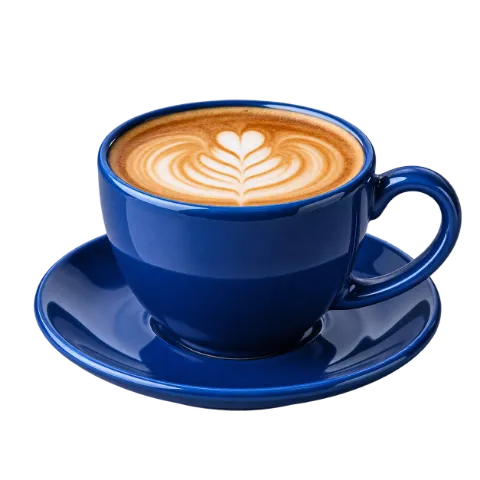
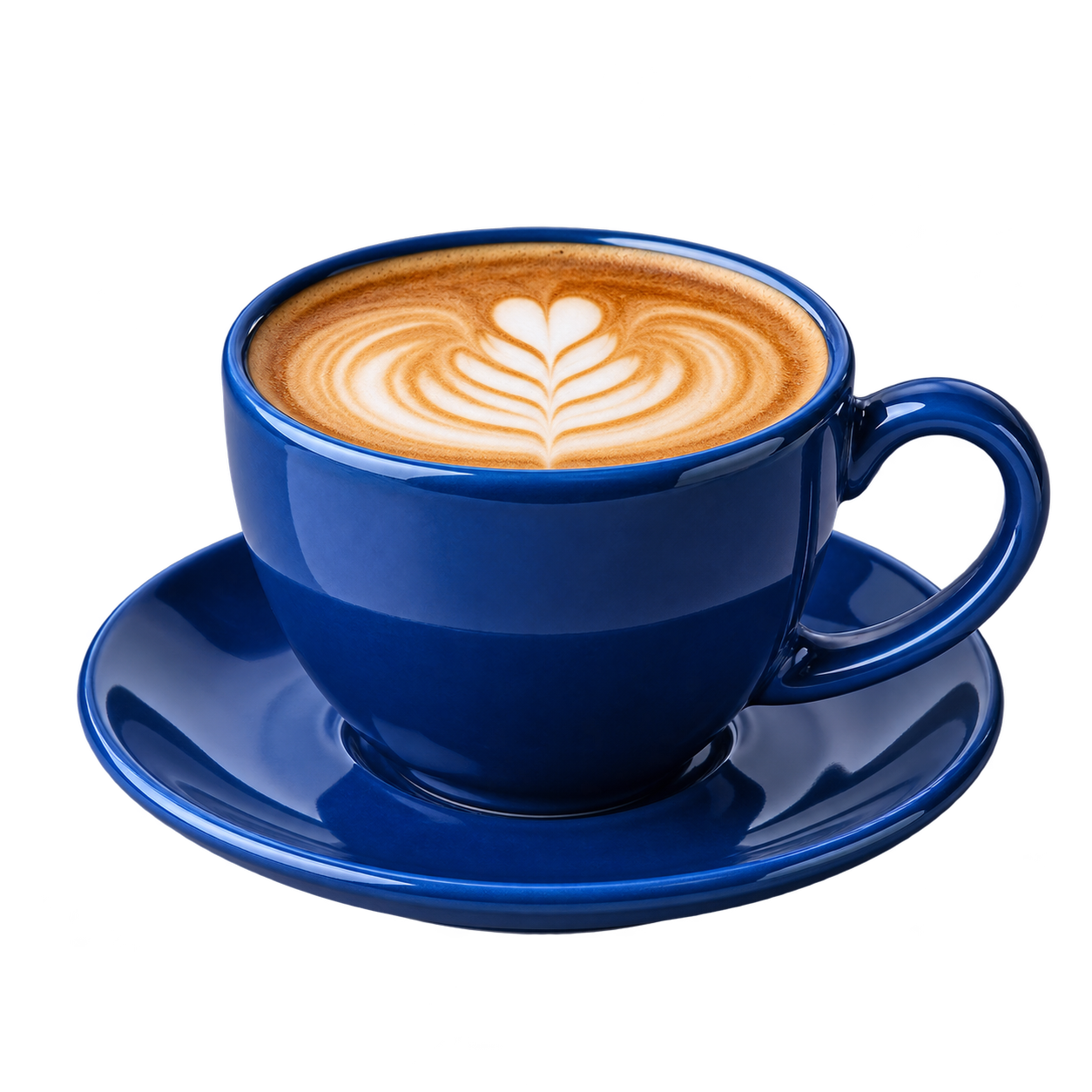

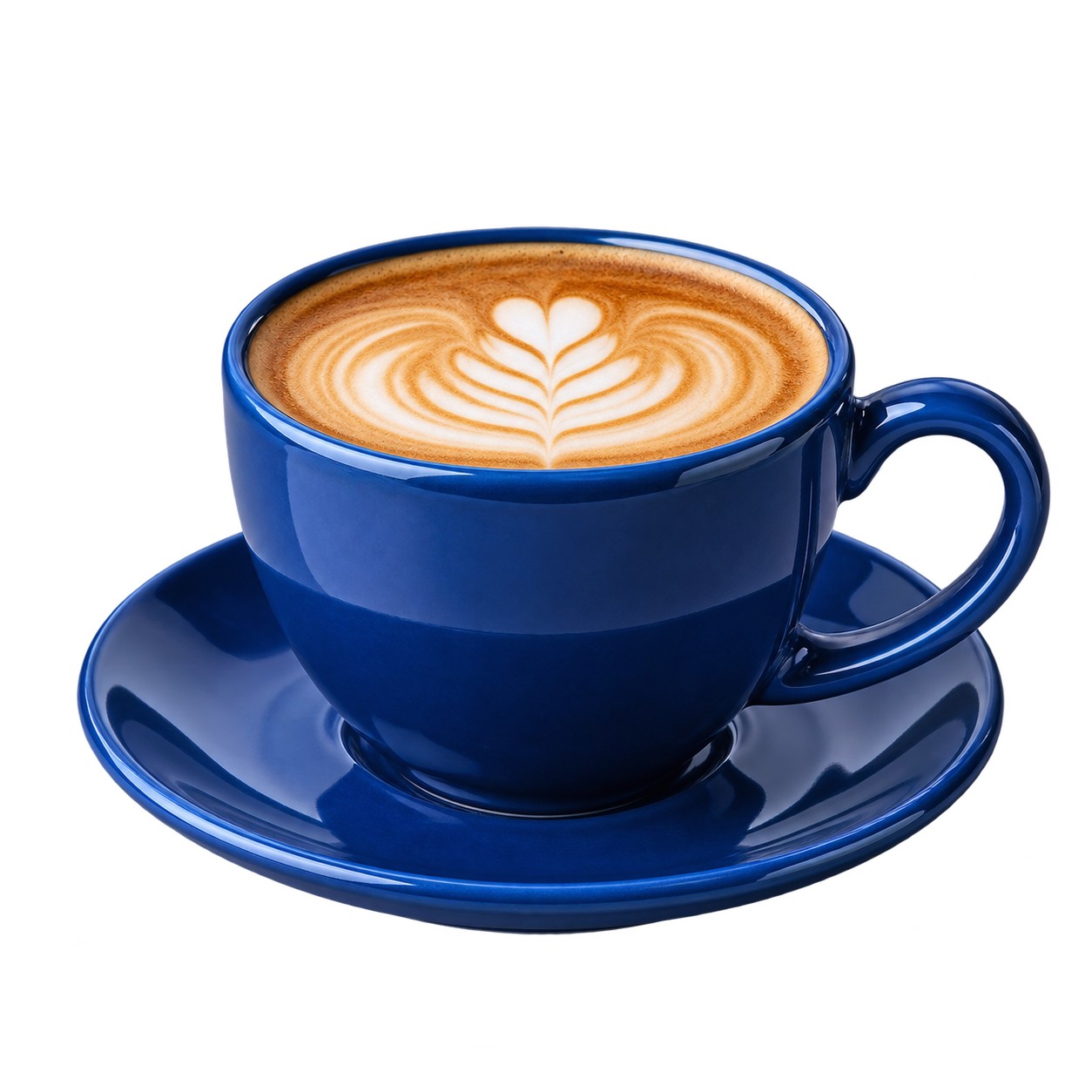
JPG cannot preserve transparency. Keep PNG if you need a transparent background.
Help and related tools
Frequently asked questions
Are my images stored on a server?
Your photos are processed on your device and are not stored on a server. Hosting access logs used to deliver the website are separate.
Are there any image limits?
Photo formats you can use: PNG. Process up to 20 images at a time. Up to 50 MB per file, 20 files and 500 MB per batch, and 50 million pixels per image. Animated images, SVG, HEIC and damaged files are not supported. Device memory can impose lower limits.
Is the original metadata preserved?
Images are re-encoded. EXIF, GPS and original color profile preservation is not guaranteed. Keep a separate copy of your originals.