Prepare a JPG for an online form
Prepare a JPG for an application or online form. Start with a 100, 200 or 500 KB target, set any required pixel dimensions, and check the actual output before uploading.

Choose the result you need
Starts with JPG, a 200 KB target and original pixel dimensions. These are not universal submission rules. Adjust the dimensions and size target to your form. This tool does not assess passport-photo or identity-photo compliance.
JPG · PNG · WebP — Up to 50 MB and 50 million pixels per photo
Start with saved settings
Saved editing settings
Your editing settings are saved in this browser. Photos, filenames and crop positions are not saved. Settings do not sync across devices and are removed when you clear site data.
File limits
Photos are processed one at a time. Results are kept up to 100 MB in total; the same limit applies to ZIP downloads. Large photos may fail on some devices. HEIC and RAW are not supported; use JPG, PNG or WebP.
Up to 20 photos, 500 MB total. Select a photo to adjust its framing. Reviewed photos keep their own settings; unopened photos use the current settings. Photos and edits last only while this page stays open.
Choose a photo to open the editor.
1. Choose your crop
Drag inside the selection to move it, or drag a corner to resize. Numeric controls are available below.
Enter exact crop coordinates
2. Set dimensions and size
Uses your current selection. Your original file stays unchanged.
3. Check and save
Compares the image before and after compression, with the same crop and dimensions in both previews. Check quality and destination requirements; acceptance is not guaranteed.
Download resultIf the saved file is not visible, check browser downloads or the Downloads folder in your Files app.
To reuse these settings later, give them a name under “Saved editing settings”.
Edit multiple photos
The three SNS sizes use your current selection. Margins preserve it; fill crops its center for each size. Check every preview.
Results
Help and related tools
Ratio, dimensions and file size are different
A square crop does not necessarily make a 600×600 px image. Set output dimensions and check the result. If the target cannot be met at those dimensions, try another format or change the size limits only if the upload requirements allow it.
JPG does not support transparency. HEIC and animated inputs are not supported. The photo you’re editing is not retained when you leave this page.
How to prepare your photo
- Choose saved settings, then select your photo or try the sample.
- Check the margins, crop and output dimensions. Adjust the size target when needed.
- Create the result, inspect its dimensions, size and quality, then download.
Can I set both file size and pixel dimensions?
Choose your JPG size target first. If your form also specifies pixels, select a photo and enter the required width and height in the output settings. Check the framing, then compare the actual dimensions and file size.
Does being under 200 KB guarantee acceptance?
No. Check the destination requirements for format, dimensions, face size, background and other conditions. This tool does not guarantee that a form will accept the photo.
What if the result exceeds my target?
This editor keeps your output dimensions while compressing. If the target is missed, change dimensions or size requirements only when the destination permits it, then try again. The tool does not silently reduce pixel dimensions to reach the target.
Can I convert PNG or WebP to JPG?
Yes. Transparent areas use your selected background color. HEIC, PDF and animated inputs are not supported. Keep a separate copy of the original photo.
Your photos are processed on your device and are not stored on a server. Analytics follows the settings described in our privacy notice. Privacy notice
Related tools and guides
See actual results
This editor keeps the chosen pixel dimensions when reducing file size. If the target is too small, the result may remain above it.
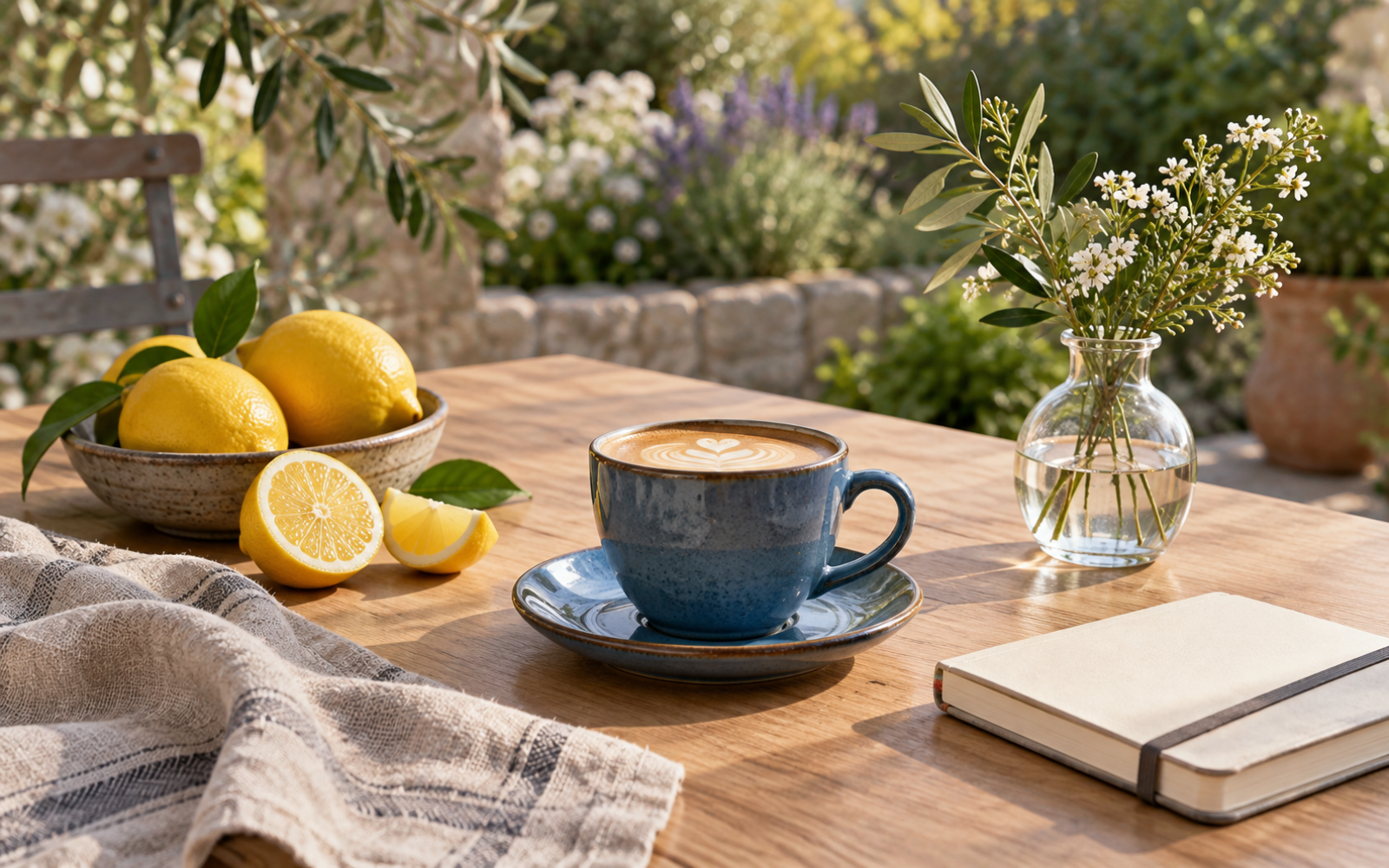
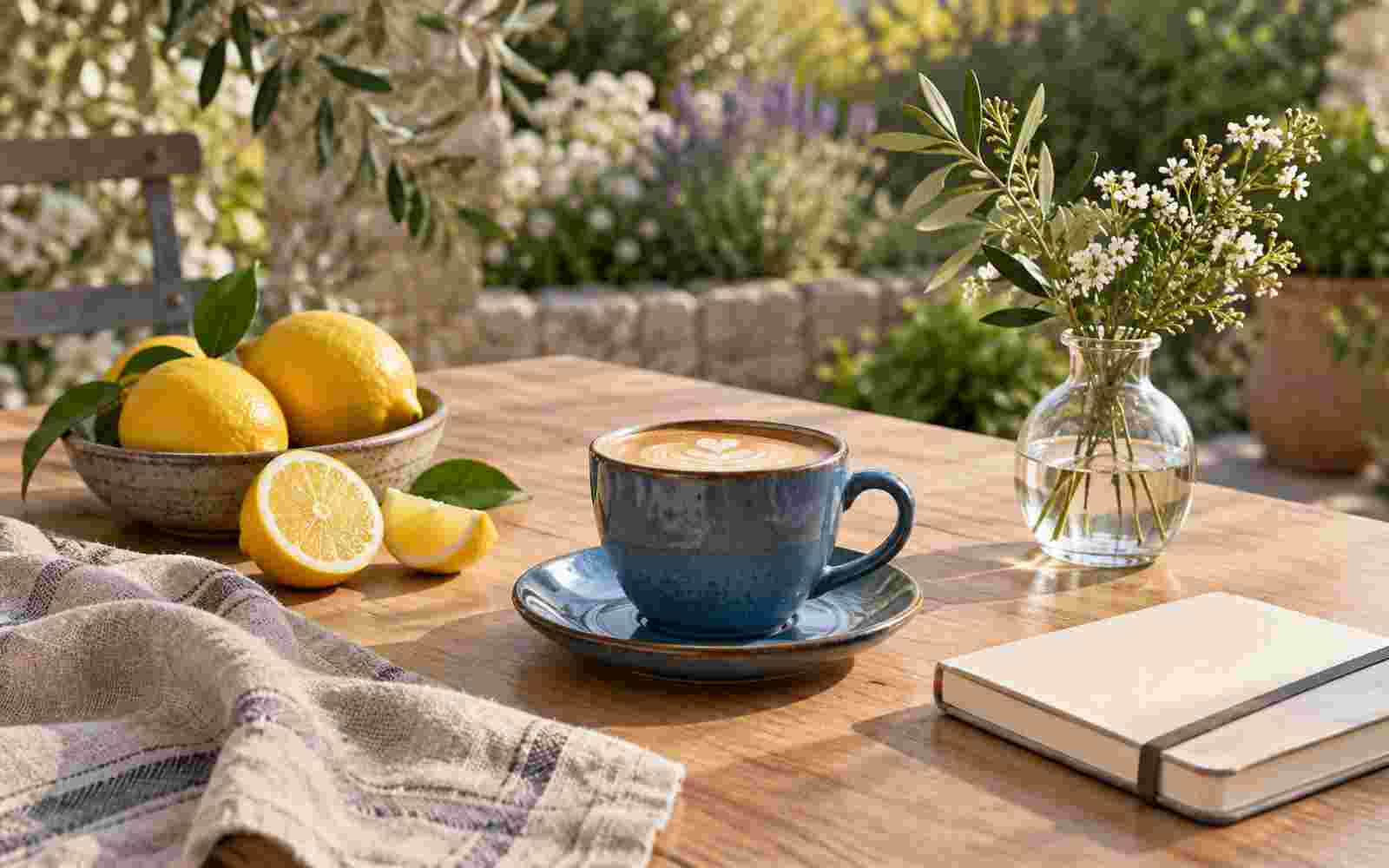
View details
| Result | File size | Pixel dimensions |
|---|---|---|
| Keep pixel dimensions · Target size 10 KB | 3,383.7 → 47.4 KB · Target exceeded | 1600 × 1000 |
Check small text and edges before using the result. A smaller file does not guarantee acceptance by the destination.