Preparing the tool. You can choose your files now.
Images to PDF
Put photos and receipts in order and save them as one PDF.
You can also drop JPG, PNG or WebP images here.
Files are processed on your device and are not stored on our server.
More settings
Choose images to get started.
How to combine photos or receipts into one PDF
Use this when you need to send photos or receipts as one file. Each image becomes one PDF page, following the order shown in the file list.
- Choose JPG, PNG or WebP images. You can add missing photos later.
- Use the move buttons to set the order, then check the PDF page previews.
- If needed, open More settings to choose A4 or image proportions and margins, then create the PDF.
- Download and reopen the PDF to check the page order and small text.
How to combine photos or receipts into one PDF
How do A4 and image proportions differ?
A4 automatically chooses portrait or landscape to match each image and fits the whole image inside the page. Choosing no margins can still leave blank space if the image has a different shape from A4. Image proportions creates a page shaped to fit each image.
Will text in my photos become searchable or editable?
The tool places images in a PDF; it does not perform OCR or recognize text. If small text looks blurred, check the focus and lighting in the original photo first.
Supported files and checks before saving
Up to 50 MB and 50 megapixels per image, 20 images and 500 MB combined. Your device may need smaller batches.
Images are converted to JPG with a long edge of up to 3,200 px before insertion. Transparent areas become white. Check text and image quality before saving.
These sample files were made by FileMori. Sample activity is recorded separately from use with your own files.
More photo and PDF guidesImages are converted to JPG with a long edge of up to 3,200 px before insertion. Transparent areas become white. Check text and image quality before saving.
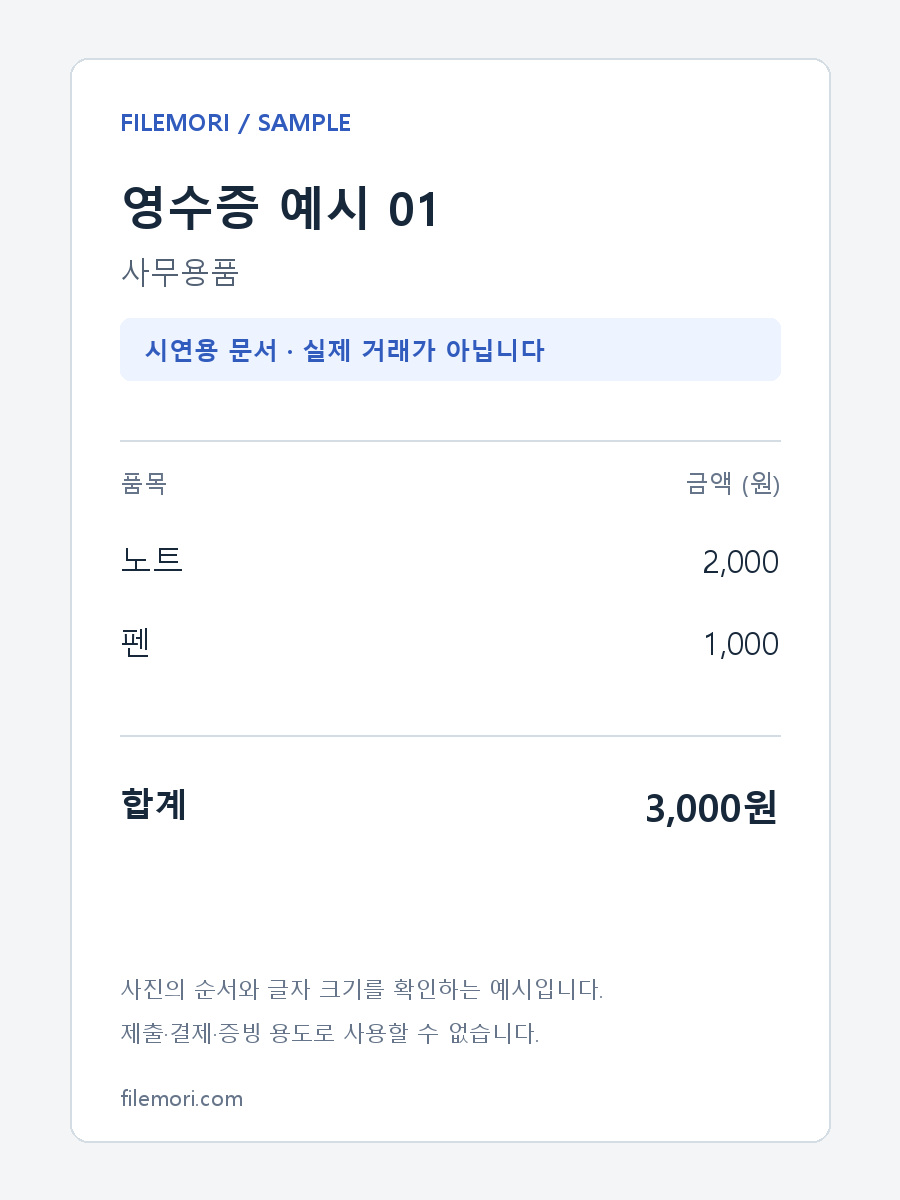
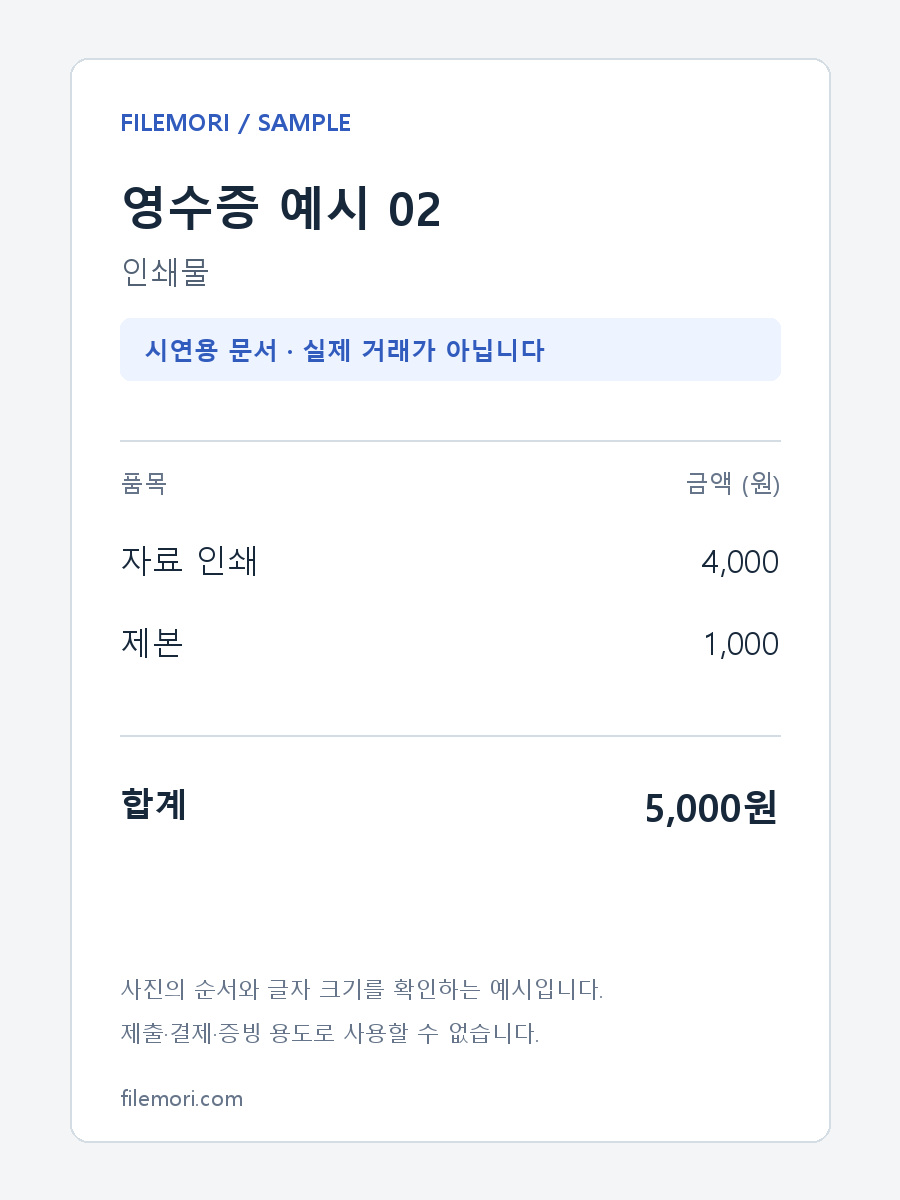
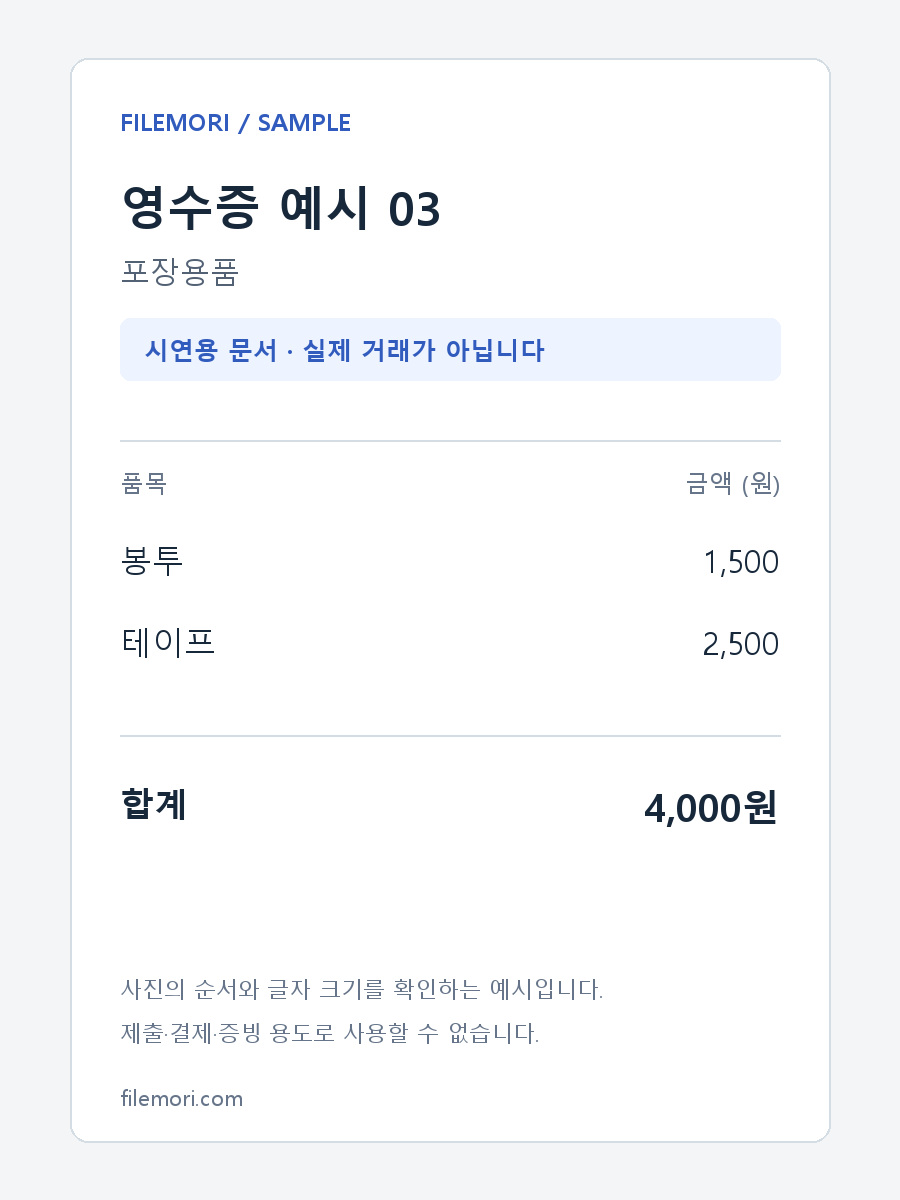
Three receipt photos in an A4 PDF
Measured on 2026-10-15 with three synthetic demonstration receipts in order, A4 paper and 24 pt margins. These are not real transactions. Check page order, orientation and small text after saving. Margins do not crop the photo, but fitting a long receipt to one page can make its text small. This is not OCR or text sharpening.